To install .NET Framework 3.5 in Windows 10, do the following:
Also sharing you Video Tutorial in case you are doing offline installation.
- Insert your Windows 10 DVD, or double click its ISO image, or insert your bootable flash drive with Windows 10, depending on what you have.
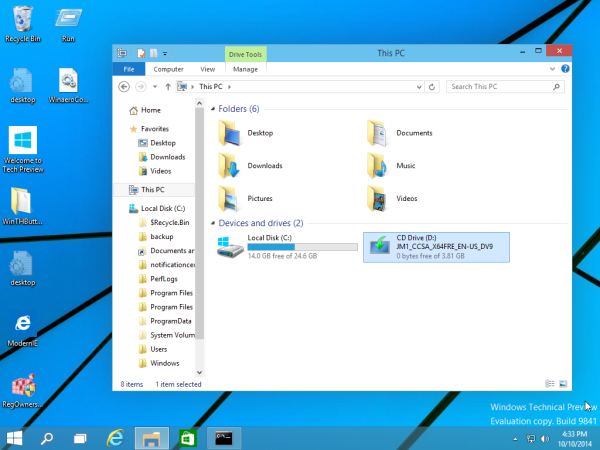
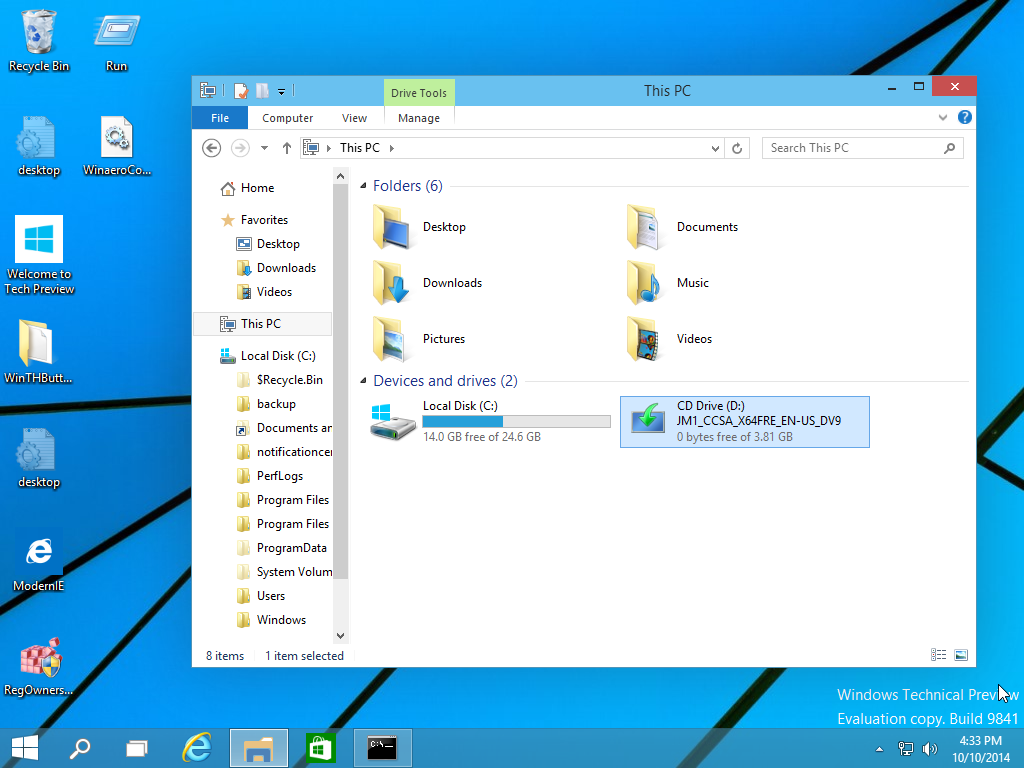
- Open 'This PC' in File Explorer and note the drive letter of the installation media you have inserted. In my case it is disk D:
- Details on command line parameters, for your reference and knowledge:
- /Online targets the operating system you're running (instead of an offline Windows image).
- /Enable-Feature /FeatureName:NetFx3 specifies that you want to enable the .NET Framework 3.5.
- /All enables all parent features of the .NET Framework 3.5.
- /LimitAccess prevents DISM from contacting Windows Update.
- /Source specifies the location of the files needed to restore the feature (in this example, the x:\sources\sxs directory).
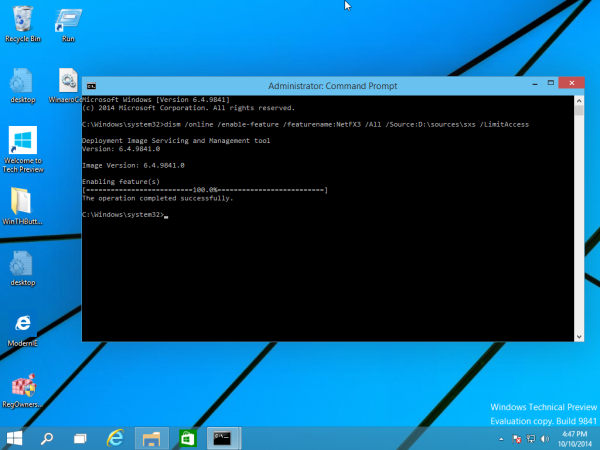
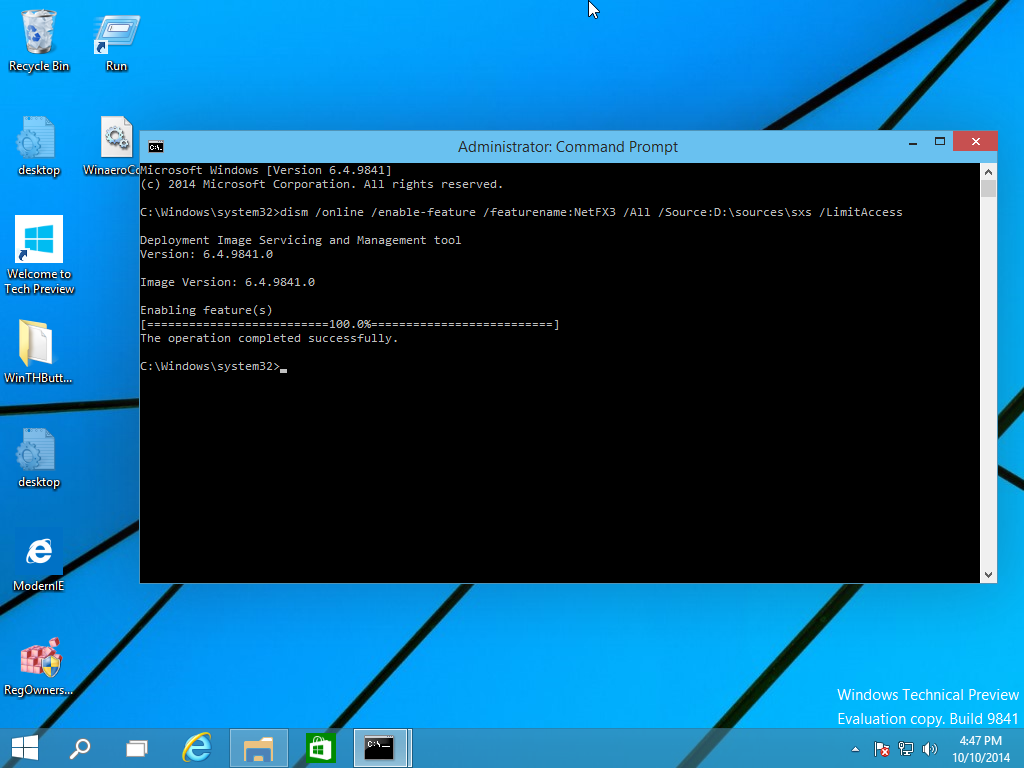
- Now open an elevated command prompt and type the following command:
Dism /online /enable-feature /featurename:NetFX3 /All /Source:D:\sources\sxs /LimitAcceReplace D: with your drive letter for Windows 10 installation media.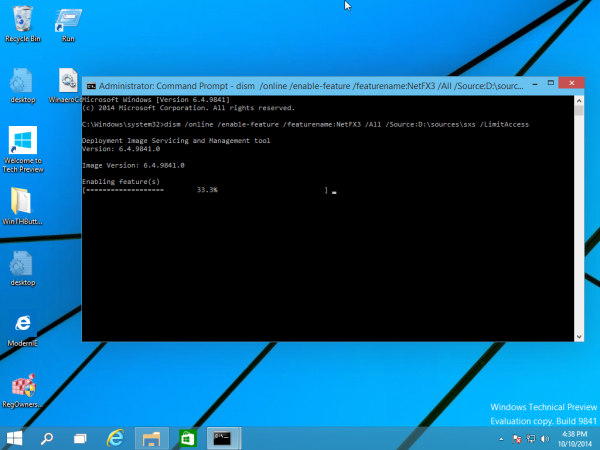
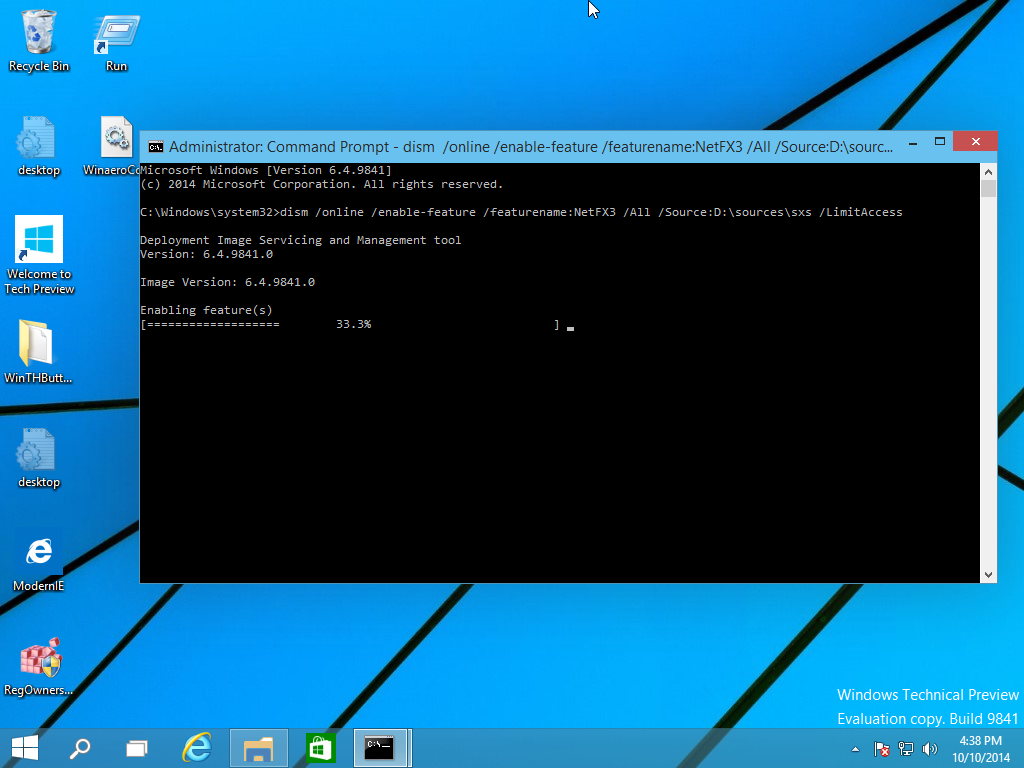
You are done! This will install .NET framework 3.5 in Windows 10.
Also sharing you Video Tutorial in case you are doing offline installation.
0 comments:
Post a Comment